Workflow Manual Enrollment
Filter subscribers, select all matches, and start a published workflow without waiting for a trigger.
You can enroll people by hand from the subscribers list. Use this when you want a filtered audience to start now, to enter at a specific step, or to run a published workflow without waiting for a trigger event.
The workflow starts immediately after you confirm. It does not evaluate the trigger events or trigger audience filters that normally decide who may enter. It still applies every normal exit rule once the run is active.
Filter the list, then Select all
- Open Subscribers.
- Add the audience filters you want. Search and status also apply.
- Click Select all N subscribers. This selects every subscriber matching the current filters, not only the current page.
- Open Actions and choose Add to workflow.
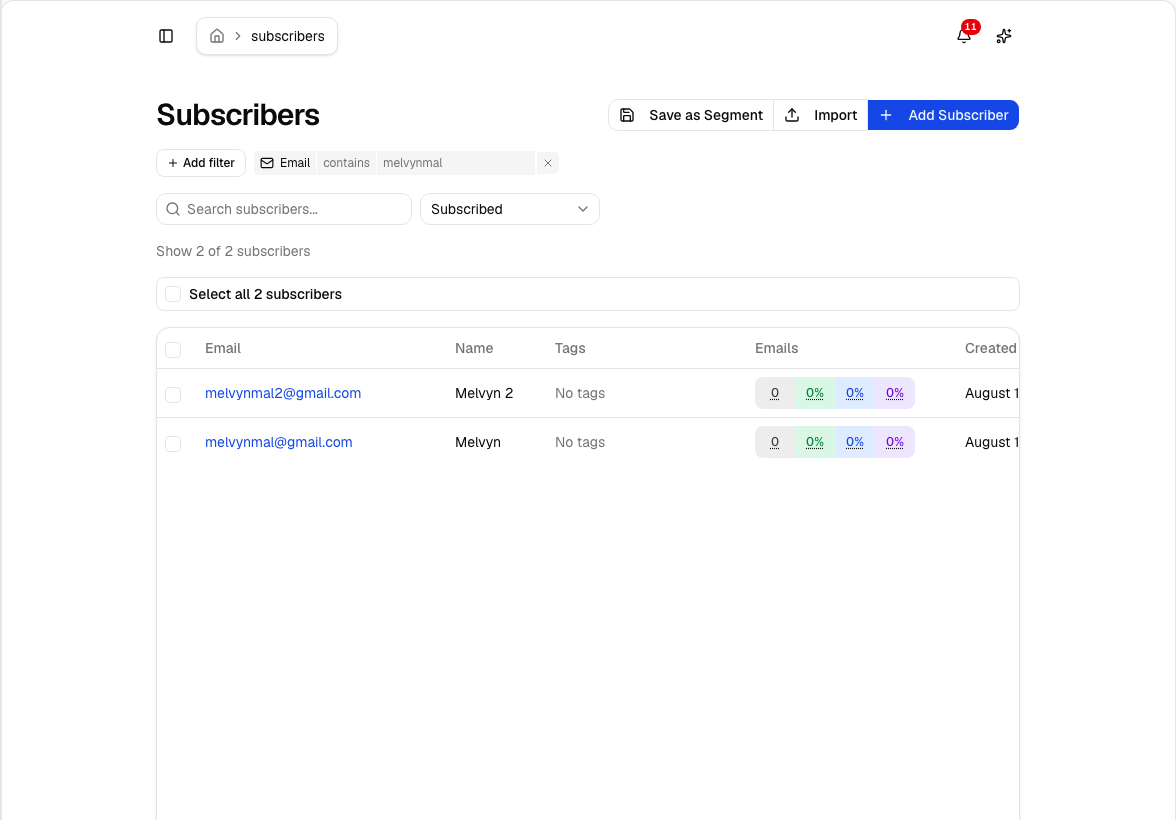
Select all is the control that targets the full filtered set. Ticking rows by hand only enrolls the current page.
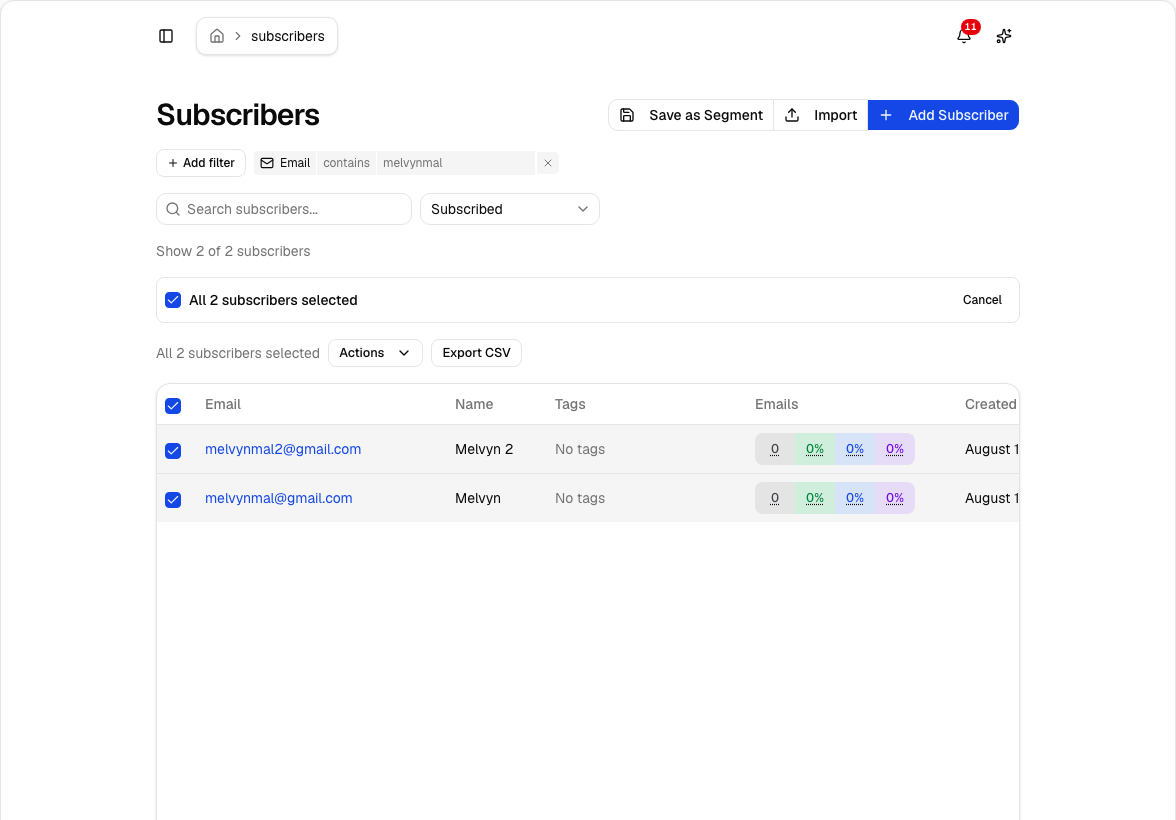
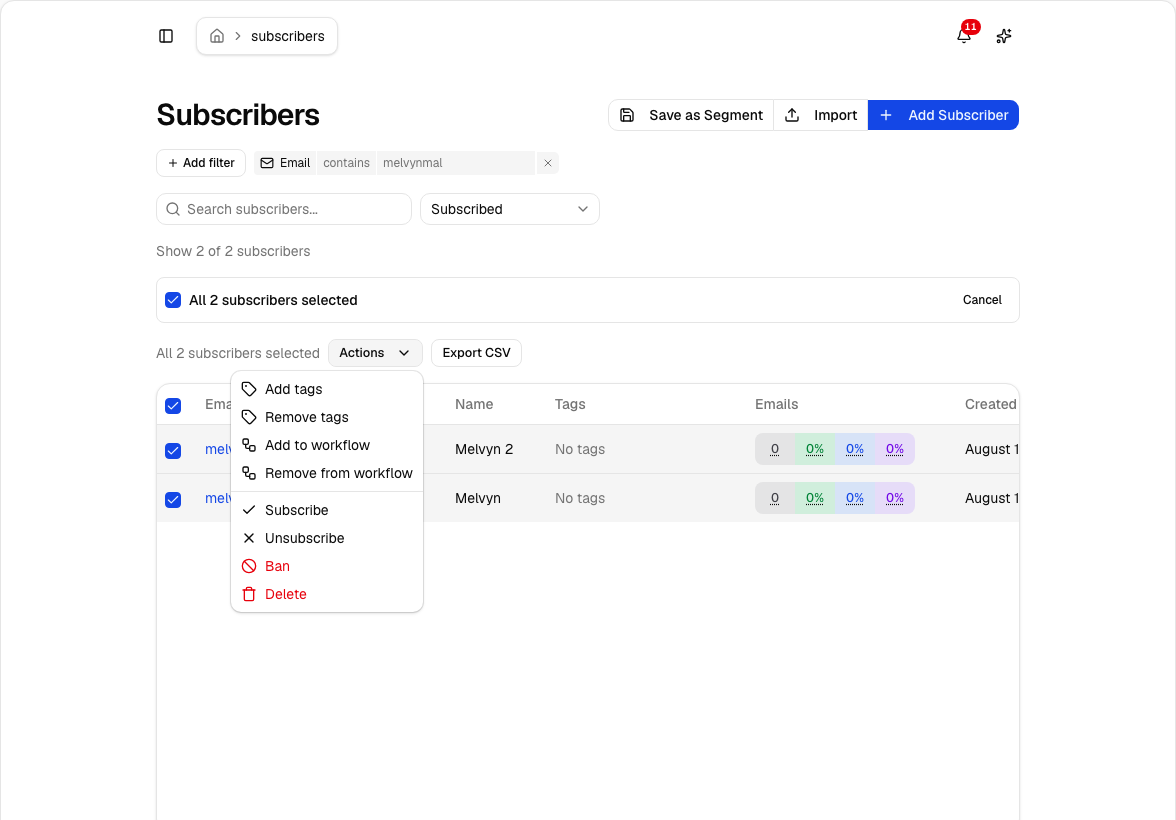
Choose the workflow and starting step
The dialog asks for two things:
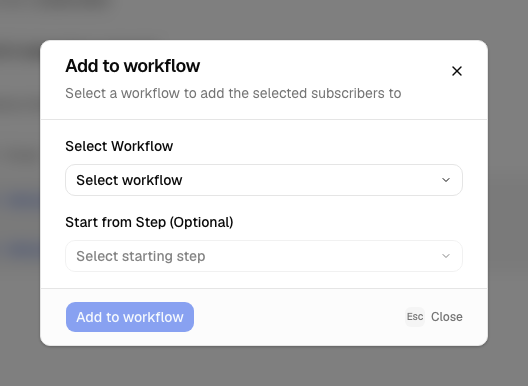
- Choose an active, published workflow. Drafts do not appear.
- Optionally choose Start from Step. Leave it empty to start at the trigger.
- Click Add to workflow.
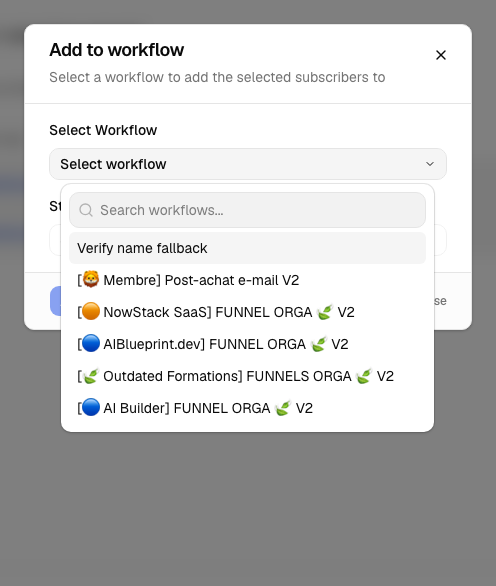
Lumail then enrolls each matching subscriber and dispatches the run. Eligible subscribers begin executing without another click and without a trigger event.
Starting step is optional. Use it to drop someone into a later email, wait, or branch. Omit it when the whole sequence should run from the beginning.
What this bypasses
Manual enrollment skips the trigger configuration on the published graph:
- Trigger events such as subscriber created, tag added, or payment
- Event filters such as a specific tag, campaign, or product
- Trigger audience filters — the subscriber rules on the trigger node
Those rules decide who may enter automatically. They are not re-checked when you add people from the subscribers list. That is intentional: you already chose the audience with the list filters.
An Add to workflow action step inside another workflow behaves the same way for the target workflow: it enrolls without matching the target's trigger.
What this does not bypass
Once the run exists, it is a normal run of the published version.
Exit rules still apply. Before each guarded step, Lumail evaluates the
published exitMode and exitRules. A match cancels the run and records an
exited timeline event. Manual enrollment does not skip that check.
These enrollment guards also still apply:
| Guard | Result if it fails |
|---|---|
| Workflow is not active | Enrollment is skipped |
| No published version | Enrollment is skipped |
| Subscriber is not subscribed | Enrollment is skipped |
| An active run already exists | Enrollment is skipped |
| Repeat cooldown is blocking | Enrollment is skipped |
| Workflow-group conflict | Follows Latest wins, First wins, or Send first email only |
| Organization sending is off | Enrollment is skipped |
Condition steps, waits, wait-until, goals, exit steps, and success goals all still execute as published. Manual enrollment only skips the entry rules, not the exit or in-graph rules.
See Exit Rules and Workflow Groups.
Do this from an agent
Agents should not click the subscribers table. Use the same enrollment engine as Select all:
- Call
get_skillwith{ "type": "filters" }if you need filter shapes. - Call
count_subscribersoradd_subscribers_to_workflowwithdryRun: trueto preview the match count and published steps. - Call
add_subscribers_to_workflowwith the same filters and an optionalstepId. - For one person, call
add_subscriber_to_workflowwithemailorsubscriberId. - To inspect where they are, call
get_subscriber_workflow_runs. To expire the current WAIT or WAIT_UNTIL so the next email or action runs now, callfast_forward_workflow_subscriber. One call completes one wait. WAIT_UNTIL follows TIMEOUT.
{
  "workflowId": "workflow-id",
  "dryRun": true,
  "filters": [
    {
      "type": "STRING",
      "field": "email",
      "operator": "CONTAINS",
      "value": "melvynmal"
    }
  ]
}
Read this page from a tool with
get_skill({ "type": "docs", "page": "workflows/workflow-manual-enrollment" }).
Call get_skill({ "type": "docs" }) with no page to list every docs slug.
When to use this
| Need | Use manual enrollment |
|---|---|
| Start a published sequence for a segment now | Filter → Select all → Add to workflow |
| Enter at a later email or wait | Set Start from Step |
| Bypass a trigger that is too narrow | Yes — that is the purpose |
| Ignore exit rules for customers | No — configure or disable the exit rules |
For a side-effect-free path, use a test run instead. Dry runs skip emails and actions; manual enrollment is a real run.